About
The online repository of the Lablink Universal Data Exchange API client includes a simple example demonstrating its use.
This example comprises a simple REST API implementing the ERIGrid Universal Data Exchange API (v2.0), which exposes a readable channel (test/channel1) and a writable channel (test/channel2).
The readable channel is continuously updated from another data source (a Lablink CSV reader) and its current value (sample) can be retrieved by the user (e.g., using curl from the command prompt).
The writable channel can be changed by the user (e.g., using curl from the command prompt).
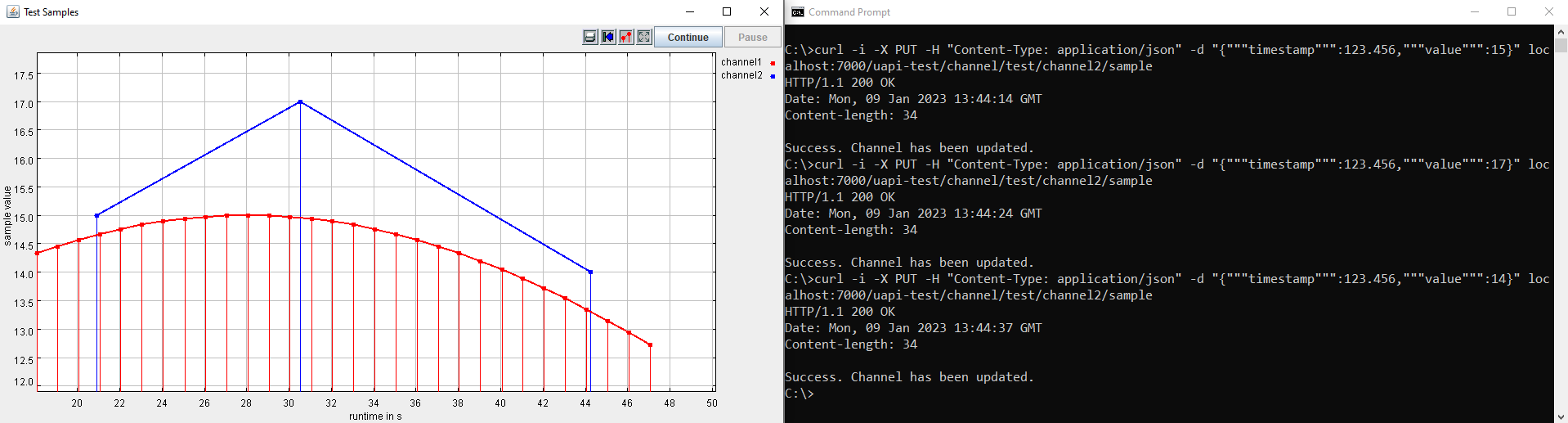
When running the example, both signals are visualized using a plotter.
Prerequisites
MQTT broker
An MQTT broker is required for running the example, for instance Eclipse Mosquitto or EMQ.
Required Lablink resources
The following Lablink resources are required for running the examples:
Lablink Universal API Client: universalapiclient-0.1.0-jar-with-dependencies.jar
Lablink CSV Client: csvlient-0.0.2-jar-with-dependencies.jar
Lablink Plotter: plotter-0.0.4-jar-with-dependencies
Datapoint Bridge: dpbridge-0.0.3-jar-with-dependencies.jar
Configuration Server: config-0.1.1-jar-with-dependencies.jar
You can checkout the example branch of the online repository and run the installer script (Windows: install.cmd, Linux: install.sh).
This will copy the corresponding JAR files to directory target/dependency.
Running the example (Windows)
Starting Lablink
Start all required Lablink clients by executing script run_example.cmd in subdirectory examples. You can either double-click the file in the explorer or call it from the command line to execute it.
This script does the following things:
Start a local configuration server for all Lablink clients, making the content of database file test-config.db available via http://localhost:10101. Once the server is running, you can view the available configurations in a web browser via http://localhost:10101.
Start Lablink’s datapoint bridge, which routes signals between clients using the MQTT broker.
Run the Lablink clients, i.e., the Universal API client, the CSV reader client (which acts as data source) and the plotter client.
For each started client, a new command prompt window should appear, printing debug information about the client’s status.
The Universal API client should continuously receive data from the CSV reader, which updates the sample value of channel test/channel1 once per second.
You can check this by looking at the Universal API client’s command prompt window, where you should see debug information for each new value.
This should look similar to the following:
...
14:24:42.883 [pool-2-thread-1] INFO  DataServiceDouble - channel1: set new value to '14.193'
14:24:42.883 [pool-2-thread-1] DEBUG LlServiceBase - Service [channel1]: state changed from [14.33] to [14.193]!
14:24:42.883 [pool-2-thread-1] DEBUG LlServiceBase - Notifying to the [1] registered listener...
14:24:42.883 [pool-2-thread-1] INFO  SampleDataNotifier - channel1: notifier -> state Changed from '14.33' to '14.193'
14:24:42.898 [pool-2-thread-1] DEBUG MqttDataPointDouble - For datapoint [data service for channel test/channel1], the value is updated to [14.193].
...
List all available channels
In this example, the Universal API client has two channels:
test/channel1is a read-only channeltest/channel2is a write-only channel
You can retrieve this information directly from the client.
There are various ways of retrieving data from REST interfaces, one way is using curl (which is by default already included on recent versions of Windows).
Use curl directly from the command prompt (cmd.exe):
curl -i localhost:7000/uapi-test/channels
This will return the API’s response status (200 in case of success) and the list of available signals:
HTTP/1.1 200 OK
Date: Mon, 09 Jan 2023 13:29:51 GMT
Content-type: application/json
Content-length: 222
[{"id":"test/channel2","payload":"samples","datatype":"float","writable":true,"readable":false},{"id":"test/channel1","payload":"samples","datatype":"float","range":{"min":5.0,"max":15.0},"writable":false,"readable":true}]
Retrieve a channel sample
Once the client is running, you can retrieve the latest sample value of channel test/channel1.
To do so, you can use curl directly from the command prompt (cmd.exe):
curl -i localhost:7000/uapi-test/channel/test/channel1/sample
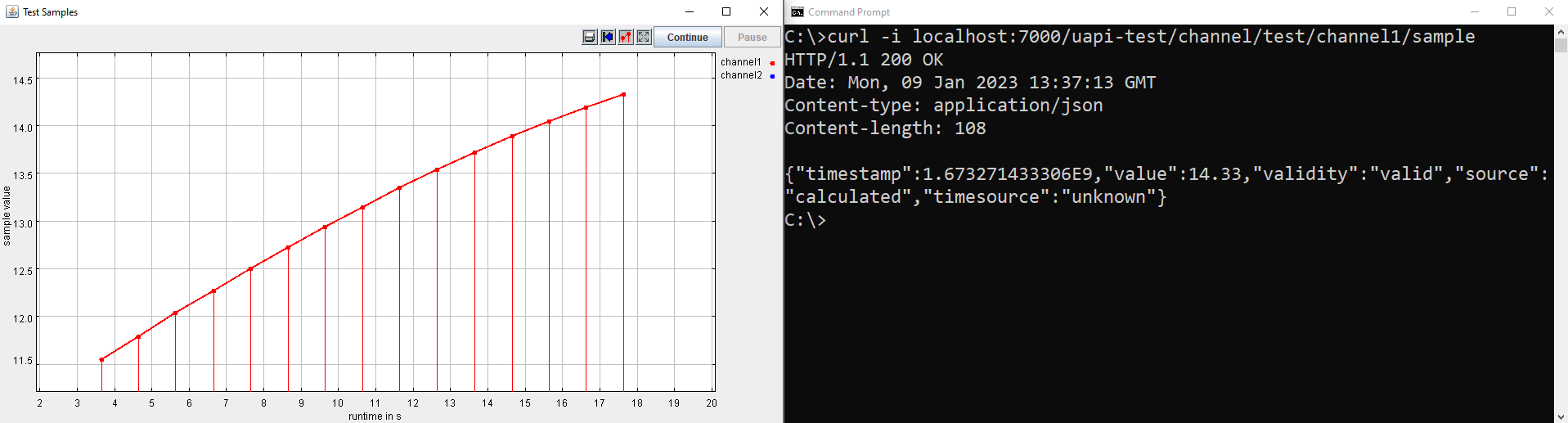
This will return the API’s response status (200 in case of success) and the current sample value of test/channel1, for instance:
HTTP/1.1 200 OK
Date: Mon, 09 Jan 2023 13:32:20 GMT
Content-type: application/json
Content-length: 109
{"timestamp":1.673271140676E9,"value":12.034,"validity":"valid","source":"calculated","timesource":"unknown"}
The returned value should agree with the latest value as visualized by the plotter.
Set a sample value
The Universal API client also has a write-only channel called test/channel2.
There are various ways of updating data through a REST interfaces, one way is again with the help of curl.
Use curl directly from the command prompt (cmd.exe):
curl -i -X PUT -H "Content-Type: application/json" -d "{"""timestamp""":123.456,"""value""":13}" localhost:7000/uapi-test/channel/test/channel2/sample
This will return the API’s response status (200 in case of success):
HTTP/1.1 200 OK
Date: Mon, 09 Jan 2023 13:42:12 GMT
Content-length: 34
Success. Channel has been updated.
The new sample value for test/channel2 should also be visualized by the plotter.